Free Trial & Purchasing#
We offer two intertwined apps - Sleep as Android and SleepCloud - each with free and premium versions to fit your needs.
FREE Sleep as Android#
The free version is perfect for testing the app’s core capabilities before committing to a purchase.
| Feature | Free Version Capability |
|---|---|
| Trial Period | Unrestricted access to all features, so you can test the full potential of the app. |
| Sleep Tracking | After the trial, tracking is limited to every other day (active on Mon, Wed, Fri, Sat, Sun; limited on Tue, Thu). |
| Non-Tracking Features | Alarms, Lullabies, CAPTCHAs, and Bedtime notifications work without limits. |
| Advertisements | The free app includes advertisements after the trial period expires. |
FULL Sleep as Android#
The full version unlocks unlimited sleep tracking and advanced features. Your purchase directly supports our team and the continued development of the app.
How to Unlock the Full Version#
You can choose the method that best fits your preference:
| Method | Best For… | Key Benefits |
|---|---|---|
| Unlock App | Families & Reliability | A separate license key app. Most reliable for purchase recognition and supports Google Family Library sharing. |
| In-App Lifetime | Simplicity | A one-time purchase made directly inside the Sleep as Android app. No extra app to manage. |
| Subscription | Flexibility | Low-cost monthly or yearly access. Includes SleepCloud PRO and an extra week of trial (for yearly plans). |
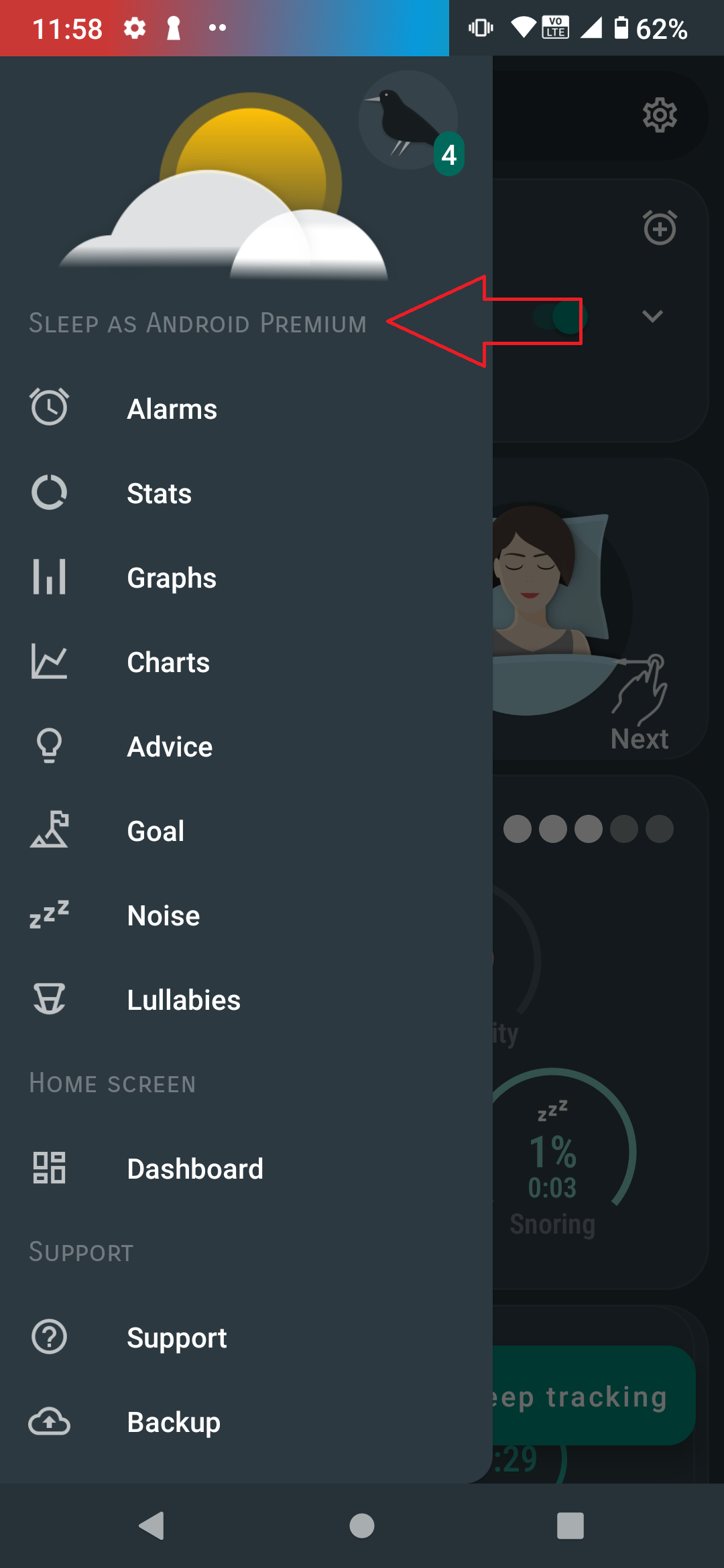
Comparison of One-Time Options#
Option A: Unlock Stand-alone App#
- Pros: Purchase recognition is extremely robust as the “key” app acts as a permanent anchor. Eligible for Google Family Library.
- Cons: Requires keeping an additional small app installed on your phone.
Option B: In-App Lifetime Purchase#
- Pros: No secondary app download required. Promotional discounts are offered regularly.
- Cons: Requires an internet connection for occasional license verification. If you use multiple Google Accounts, the purchasing account must remain the primary account in the Play Store to avoid reverting to the free version.
SleepCloud Backup#
SleepCloud is our native backup and synchronization service.
| Tier | Backup Frequency | Features |
|---|---|---|
| FREE | Once per week | Unlimited access to the web dashboard and online account. |
| FULL | Every tracking session | Real-time backup as soon as you end tracking. Included for free in the monthly Sleep as Android subscription. |
The Full SleepCloud version requires a small yearly fee to cover the costs of secure cloud storage on Google servers.
How to restore the full version#
If the app is suddenly showing the trial version, Google Play is likely having trouble recognizing your license.
Before trying the steps below, please backup your sleep history so you don’t lose any data.
To fix this, check which type of purchase you made and follow the matching steps below:
1. You bought “Sleep as Android Unlock” (Separate App)#
You must have both the main app Sleep as Android and the Sleep as Android Unlock app installed on your phone.
- Open the Google Play Store on your phone and search for Sleep as Android Unlock.
- Make sure the app is updated to the latest version, 20260901.
- If you see an Install button, download it again. As long as you are signed in with the same Google account you used to buy it, you won’t be charged again.
- Can’t download it or seeing a price tag? Open a web browser on your computer, go to the Google Play Store, sign in with the correct account, and install it to your phone from there.
2. You bought an In-App Purchase or Subscription#
In-app purchases are strictly tied to the specific Google account used at the time of purchase. If you have multiple Google accounts on your phone, Google Play sometimes assigns the app to the wrong account.
Step 1: Remove the app from the unpurchased account
- Backup your sleep history: Before you proceed, make sure your data is backed up so you don’t lose any sleep records.
Do not use local manual backup for this process! Uninstalling the app will erase its local storage. Please use a cloud backup or use the “Share” option to send the backup file off your device (e.g., to your email or cloud drive).
- Uninstall Sleep as Android from your phone.
- Open the Play Store app, tap your Profile Icon (top right) → Manage apps & device → Manage tab.
- Switch the filter from “Installed” to “Not installed”.
- Find Sleep as Android in the list and remove it by tapping the Trash/Cross icon.
(Note: If you don’t see it, switch to your other Google accounts in the Play Store app and repeat this step).
Step 2: Reinstall under the correct account
- Open a web browser on a computer (not your phone) and go to the Sleep as Android Play Store Page.
- Make sure you are signed in with the exact Google account used for the purchase.
- Click Install and select your phone as the destination device.
Once downloaded, open the app on your phone. It should now recognize your purchase automatically!
Still having trouble?#
If your purchase is still not recognized, please send us a bug report directly from the app: go to Left ☰ Menu → Support → Report a bug and send your application logs. Our support team will be happy to help!