Heart rate detection
Tracking your heart rate does more than just show a pulse line, it drastically improves your sleep data and makes awake detection far more accurate.
If your wearable supports it, the app can also track your Heart Rate Variability (HRV), giving you a deeper look into your nervous system’s recovery overnight.
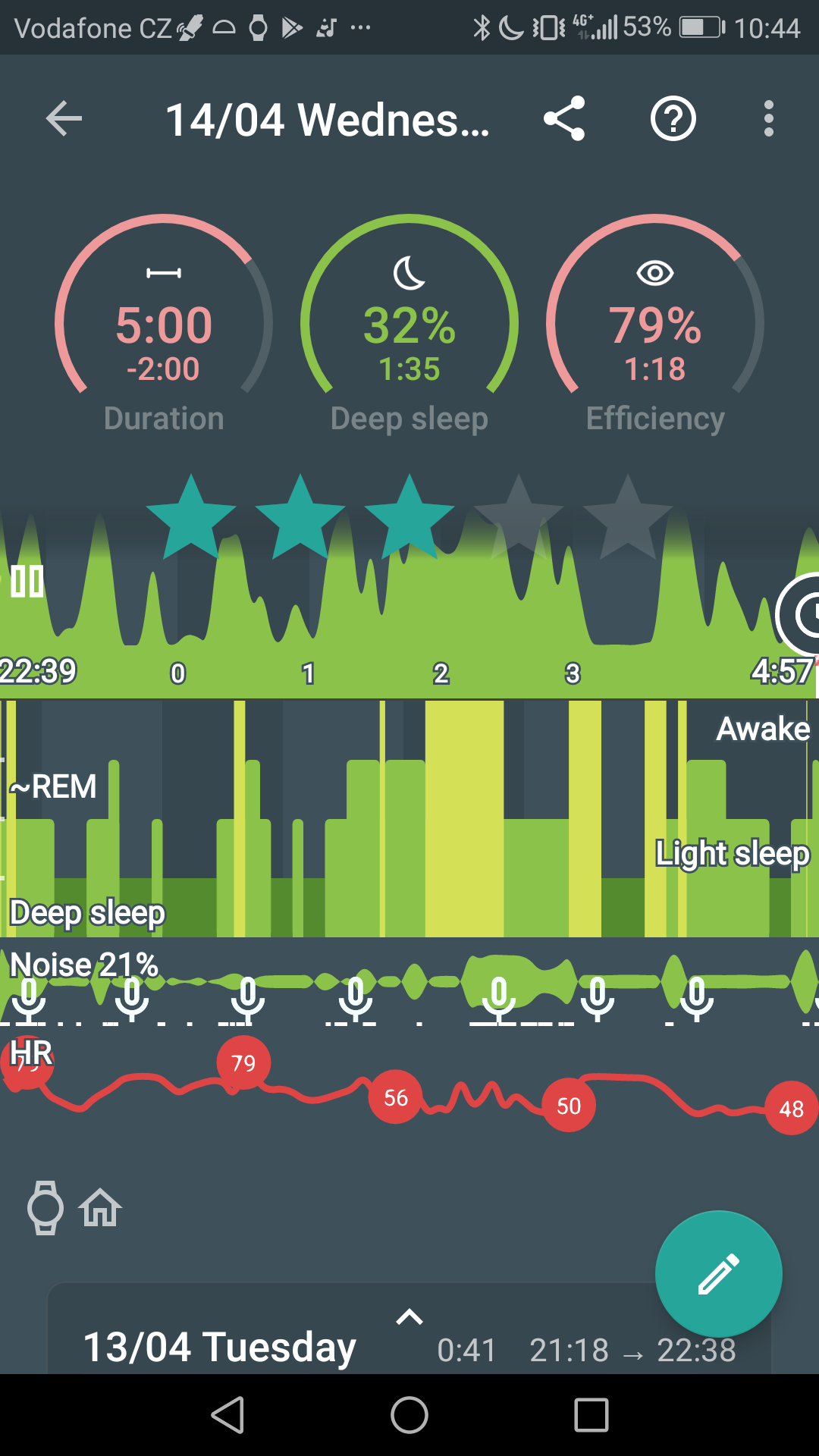
Figure 1. Graph with heart rate tracking
|
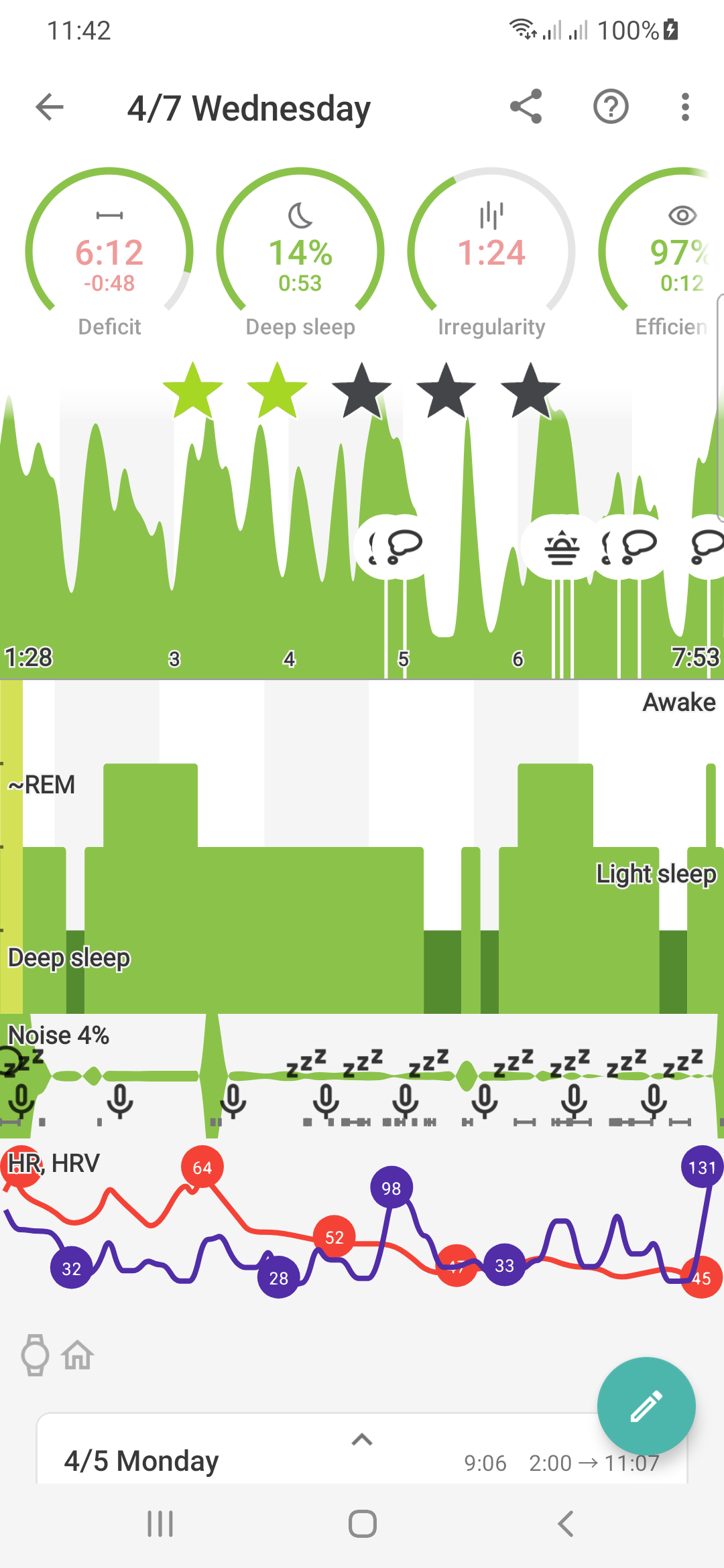
Figure 2. Graph with heart rate and heart rate variability
|
Depending on what you wear to bed, choose one of the three setup paths below:
1. Fully Integrated Smartwatches
For Wear OS, Galaxy Watch, Garmin, Fitbit, Mi Band, Amazfit, Pebble, and other compatible watches.
-
Go to Settings → Sleep tracking → Wearables → Heart rate monitoring.
-
Turn the feature on.
2. Pulse Oximeters
For dedicated overnight oximeter devices.
-
Go to Settings → Sleep tracking → Wearables → Pulse Oximeter (Smart Bluetooth).
-
Once connected, heart rate tracking is enabled automatically!
3. Standard Bluetooth Sensors (Direct BLE)
For standalone heart rate chest straps or armbands (like Polar H7) and other non-compatible wearables.
-
Go to Settings → Sleep tracking → Wearables → Bluetooth Smart.
-
Toggle this option on to scan and pair your sensor.
3.1. How to Check If Your Wearable is Compatible
Not sure if your watch can send direct heart rate data to our app? You can run a quick check using our Bluetooth scanner:
-
Make sure your watch is paired with your phone and that no other health or fitness apps are actively using the sensor in the background
-
In the Sleep app, navigate to Settings → Sleep tracking → Wearables and turn on Bluetooth Smart
-
The app will scan nearby Bluetooth signals. Look for your device in the list. If it features a
 Heart icon next to its name, it supports the required profile and will track perfectly!
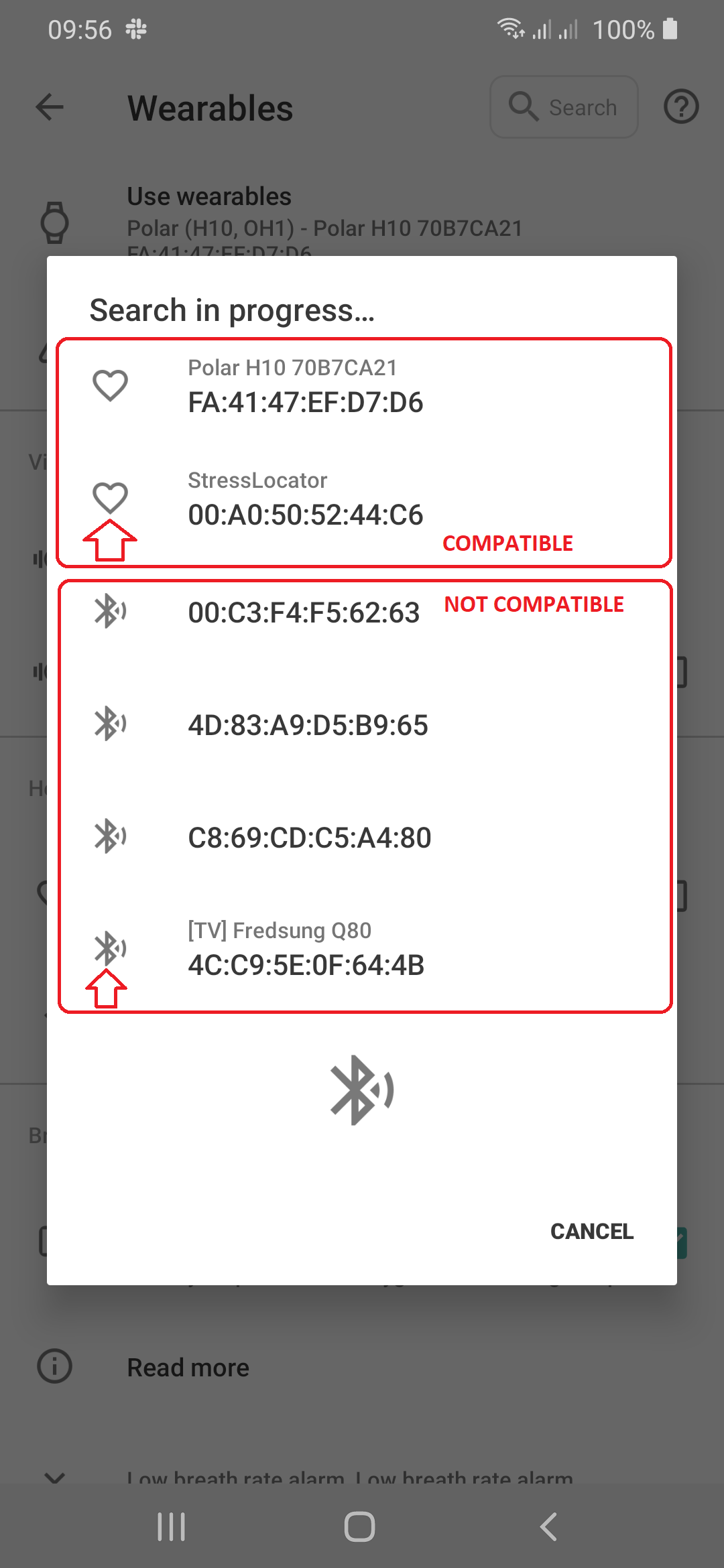
Figure 3. Difference between compatible and non-compatible HR protocol
|
3.2. What if my device doesn’t have the heart icon?
Don’t worry! You can still get your heart rate data into the app. Simply set your watch’s native app to sync its data to Health Connect, or Samsung Health. Sleep as Android will automatically download your heart rate data from there after you wake up.
4. Tracking Heart Rate Variability (HRV)
If your wearable device is physically capable of collecting HRV data, you don’t need to turn on any extra settings. The app will automatically bundle your HRV data into the main heart rate stream and display your HRV graph alongside your standard sleep metrics.
Want to know what your HRV actually says about your body’s recovery? Check out our in-depth blog post on how HRV tracking works and why it matters.
FAQ
Sleep tracking with Wear OS device requires a companion app installed from the Play Store on the watch.
How to get there:
-
Make sure the watch is connected to the phone.
-
Go to app list on your watch, select Play Store.
-
Find Sleep as Android and select Install.
-
After the companion app is installed, you can enable the connection in Settings → Wearables → Use wearable → Wear OS.
-
Test the connection in Settings → Wearables → Test sensor - you should see a graph reacting to your movement (a short delay is normal, data are sent in batches).

|
Sleep tracking collects data the night and they are analyzed in real-time. This means the watch must stay connected with BT during sleep tracking. |
All currently supported devices can be found at list of compatible devices.
If you’d like us to integrate another device, please submit it as a suggestion to our Suggestion Forum. Also, please check if the device has an API so we can integrate it.
Smart Bluetooth allows us to collect HR data from a non-compatible wearables, or oximeters.
-
Enable the tracking in Settings → Sleep tracking → Wearables →Bluetooth Smart (may be hidden in the Advanced section).
-
Try pairing with your device (this may not be necessary for all devices and OS versions).
-
Make sure that no other app is using your device during sleep tracking.
If nothing helps please send us a debug report using Left ☰ menu →  Support →
 Report a bug..
|
|
BT Smart heart rate tracking only works from Android 4.3 onward |
On the Wear OS platform and ONE UI Watch (Galaxy Watch 4 + 5), we use gentle vibrations for an even more natural wake up.
It starts with a single vibration, another in 30s, then again in 20s and so on. After a few minutes, the vibrations become continuous.
If you’re worried that’s not enough, you can set a delayed start of alarm sound on the phone. And there is always the backup alarm.
-
Please make sure that you are not accidentally starting the Sleep as Android app from your watch. This would start sleep tracking immediately.
-
Make sure you are not using automatic start of sleep tracking in Settings → Sleep tracking → Automatic sleep tracking → Start sleep tracking.
You can find more information about automatic sleep tracking start here.