Create alarm#
Setting up an alarm in Sleep as Android gives you complete control over your wake-up routine - whether you need a simple daily alarm, a quick nap timer, or a highly customized schedule.
Ways to Create a New Alarm#
You can create a new alarm from several places within the app depending on your layout preference:
-
From the Dashboard: Tap the
 button at the top of the screen on the alarm card.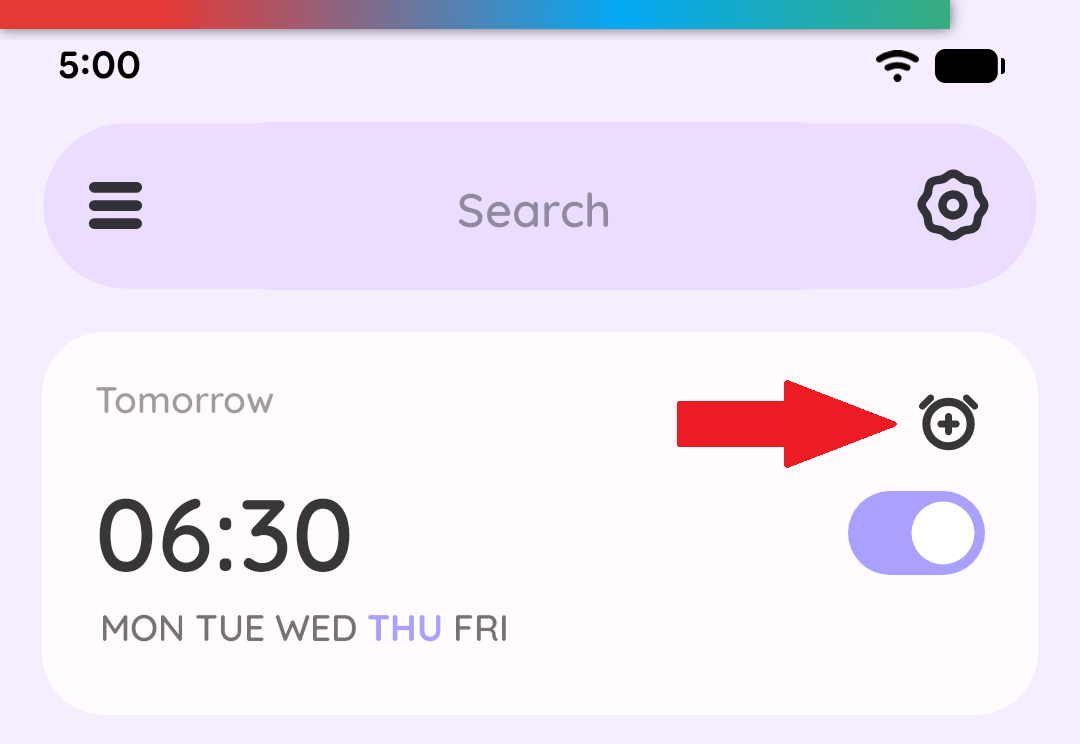
-
From the Tabs layout: Tap the (
Add Alarm) button located in the top left, on the Alarms tab.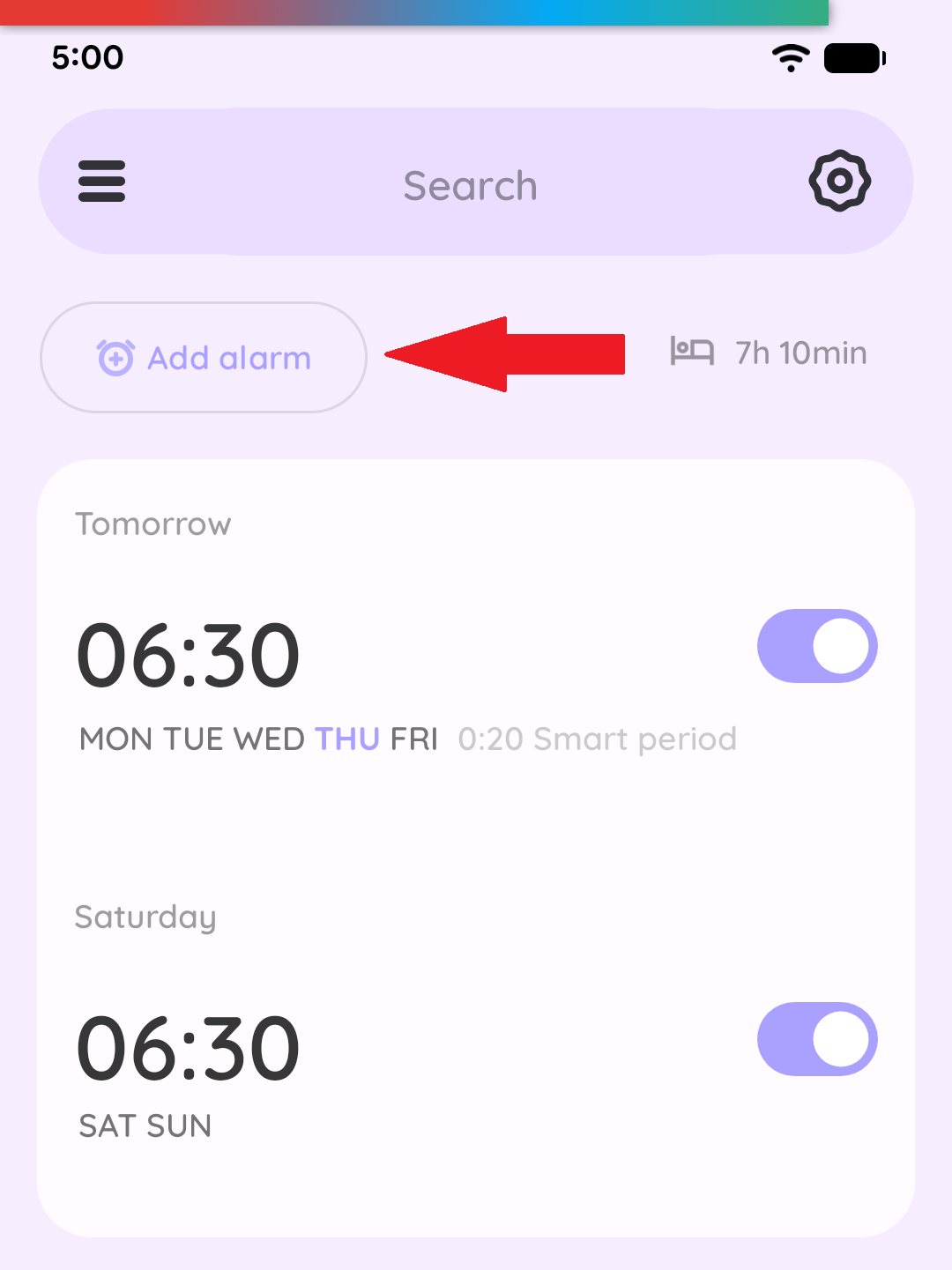
-
From the Alarms only layout: Tap the (
Add Alarm) button located in the bottom right corner.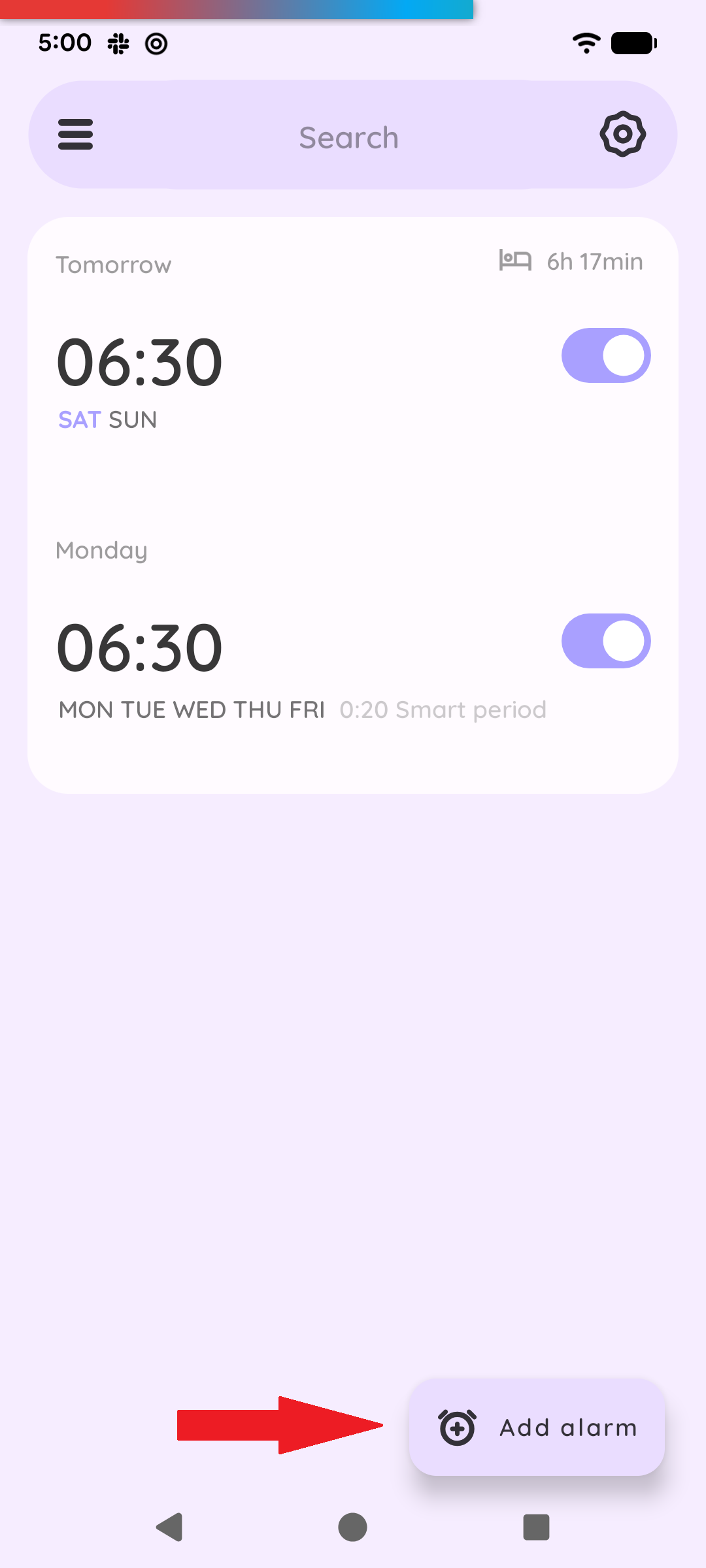
-
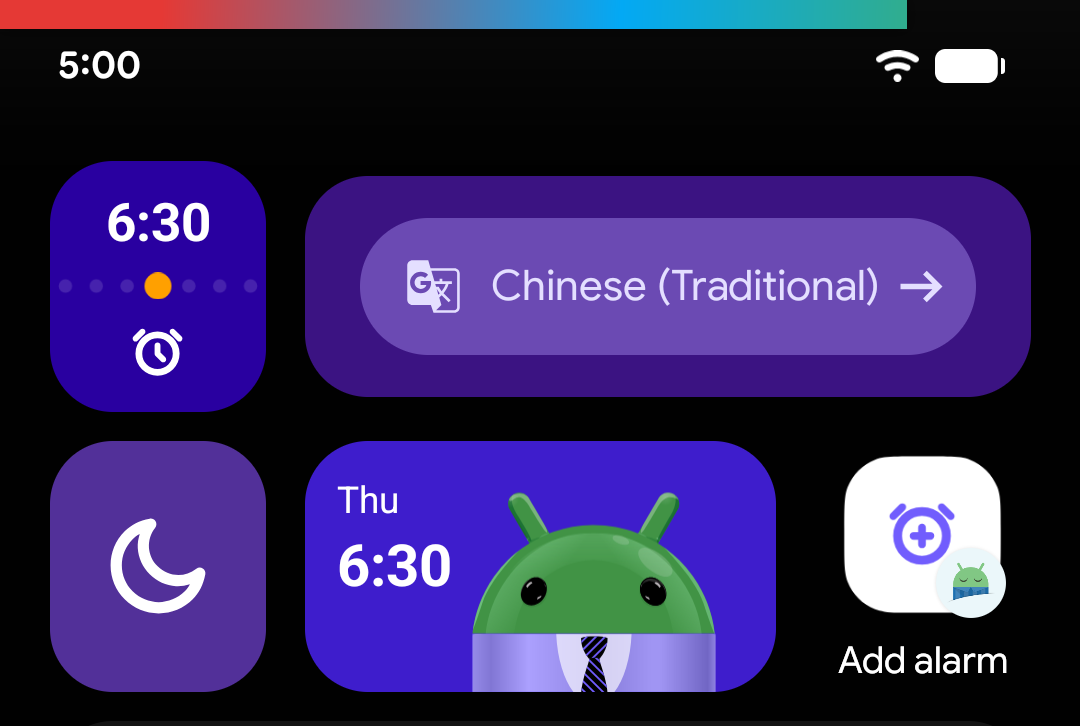
From Your Phone’s Home Screen: Add the Alarm Icon Widget to your home screen for quick, one-tap creation. (Learn more about widgets)
-
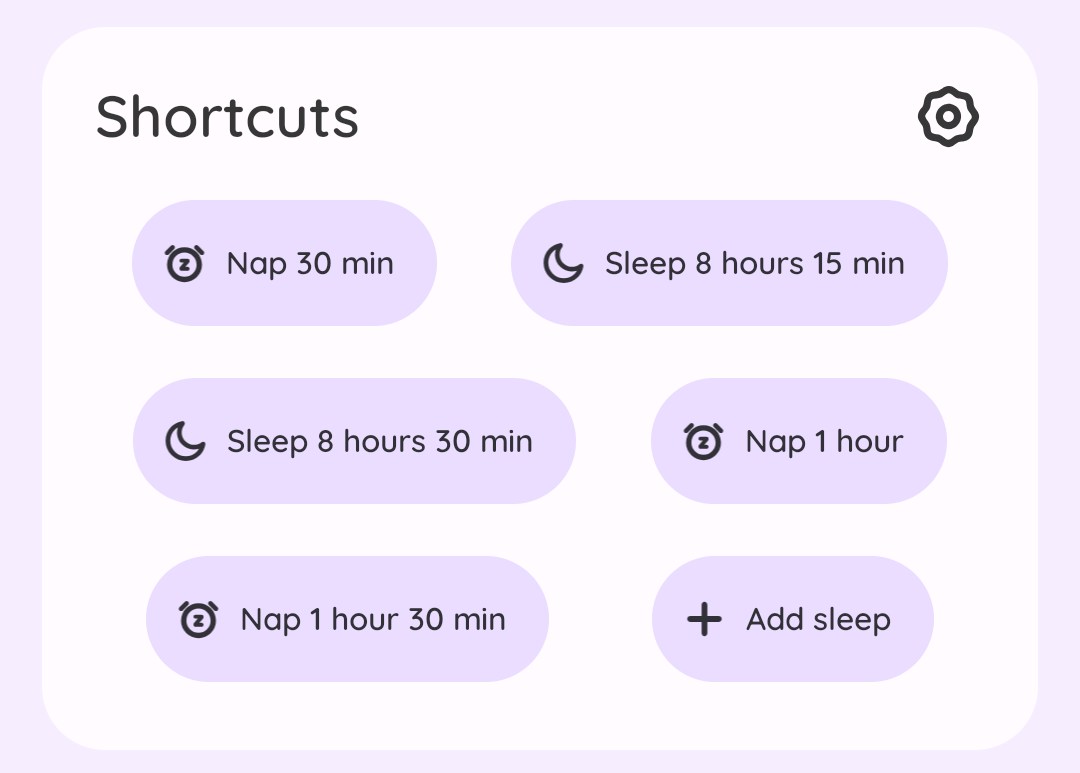
Quick Sleep Tracking & Instant Alarm: Use the Shortcut Bar on the Dashboard. This automatically creates a single-use alarm (with Delete after ringing enabled) and starts sleep tracking in one smooth step. For more details about Shortcuts, check out the Dashboard chapter.
Options for Entering the Alarm Time#
When setting or updating an alarm time, you have several input styles and smart wake-up features to choose from:
Time Pickers#
Select the picker interface that suits your preference:
- Analog Clock Picker (Default)
- Wheel Time Picker
- Material YOU picker
How to switch styles: Go to Settings → Personalize → Analog time picker.
Voice Input#
Tap the  Microphone icon and speak your wake-up time aloud (e.g., “Seven thirty AM”). Powered by Google Speech Recognition.
Keyboard Entry#
Tap the numerical text box and type your target time directly in 24-hour HHMM format (for example, type 0700 for 7:00 AM).
Advanced Alarm Time Options#
-
Sunrise Alarm: Tap the
 Sunrise icon to automatically sync your alarm time to your local sunrise time.
Requires location permissions enabled on your device.
-
Sleep Goal Alarm: Tap the
 target button. The app will calculate your ideal wake-up time based on when you go to bed to help you hit your Daily Sleep Duration Goal.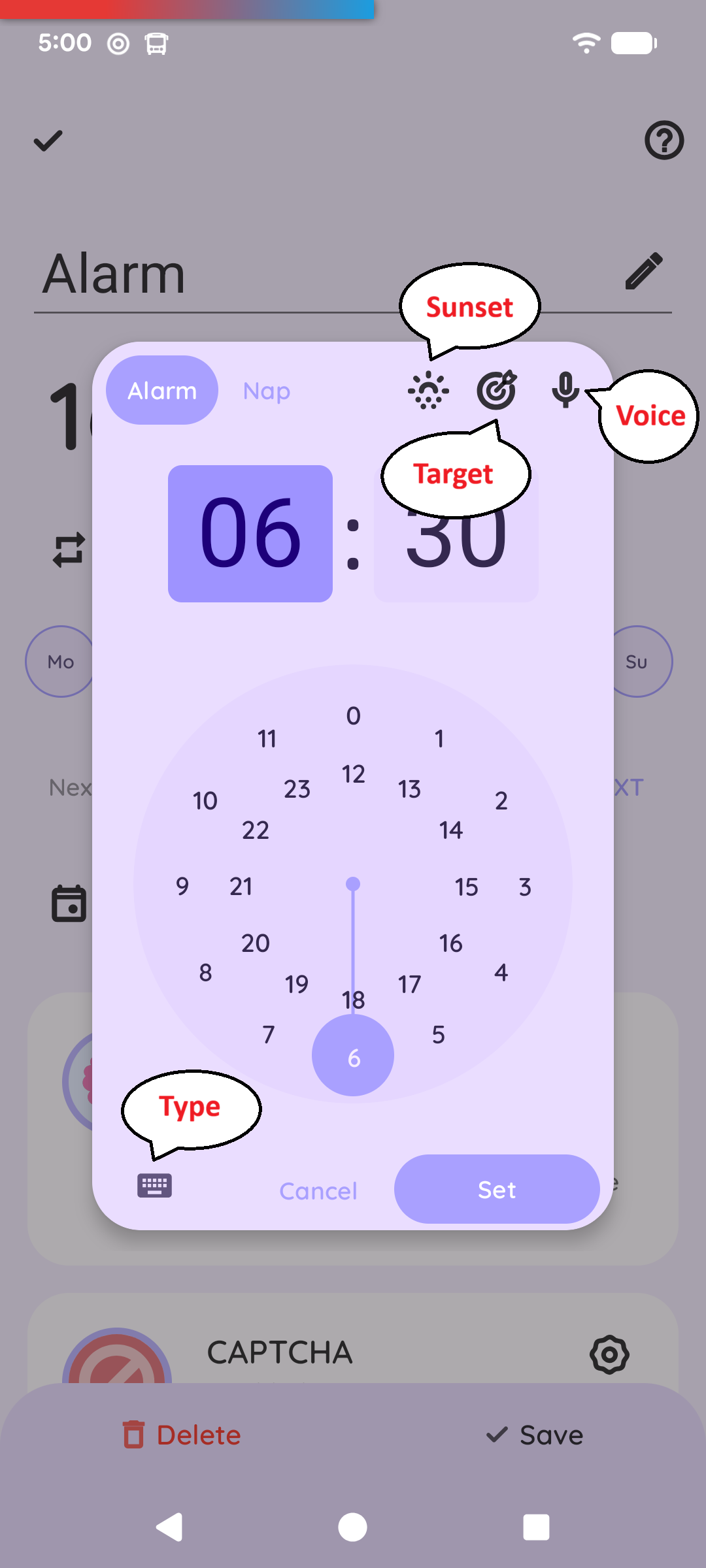
Editing & Managing Alarms#
Managing your current alarms is fast and simple:
- Change the Time: Tap directly on the time displayed on the alarm card to open the time picker.
- Customize Alarm Settings: Tap anywhere else on the alarm card (outside the time display and toggle switch) to open its individual settings, such as ringtones, CAPTCHAs, or custom snooze options.
- Deleting an alarm: Long-press on the alarm you want to remove, then choose Delete, or in the per-alarm settings, tap the Delete button at the bottom.
- Skip Next Instance: If you have a recurring alarm set for tomorrow morning but have the day off, you can use the Skip next feature. Long-press the alarm card and choose Skip next.
Global vs. Per-Alarm Settings: Customizing settings directly on an alarm card overrides your app default settings for that specific alarm only. If you want to change default settings for all alarms, go to
Settings→Alarms.
Need further help? Contact us via Left ☰ Menu → Support → Report a bug.